Sample Images
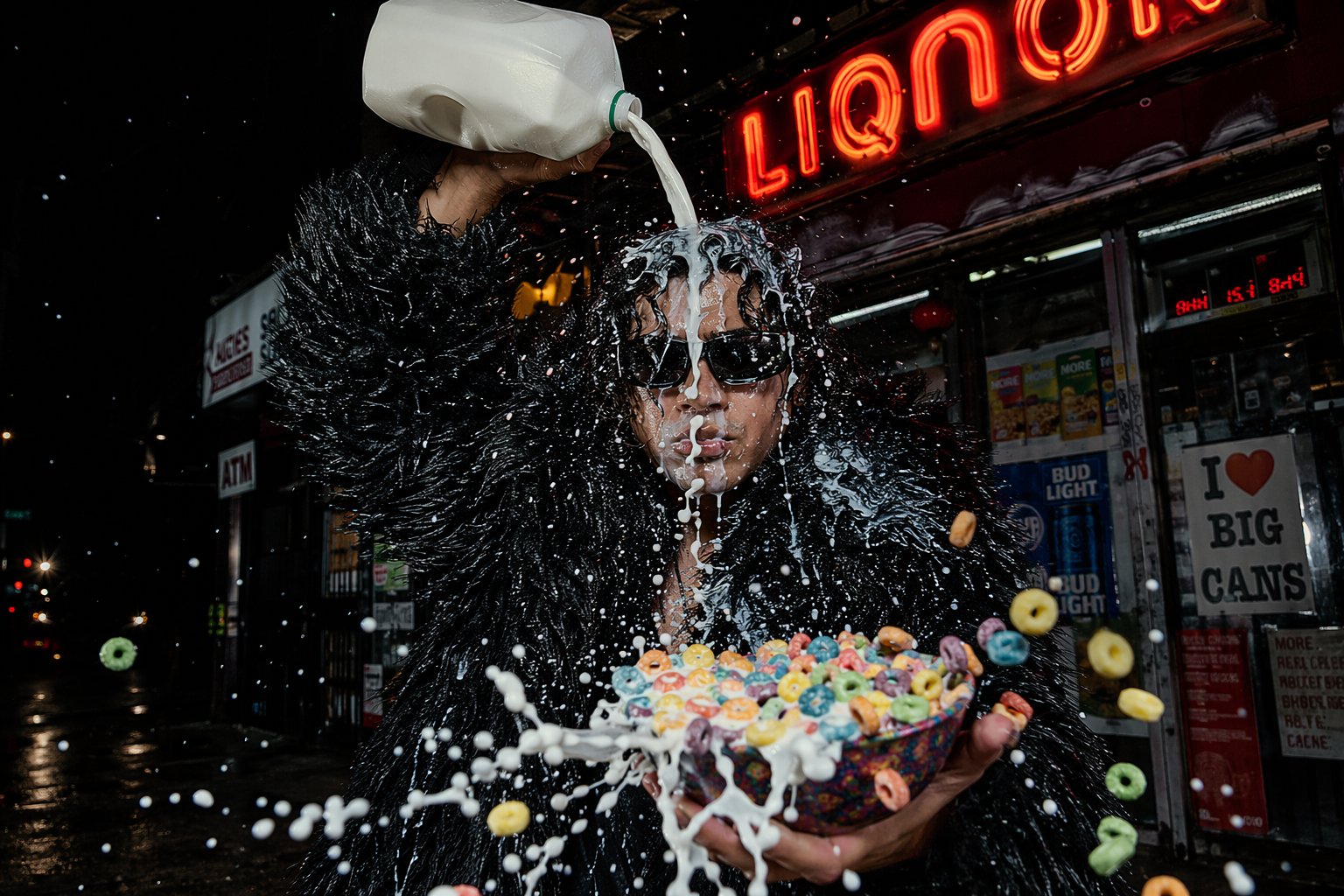
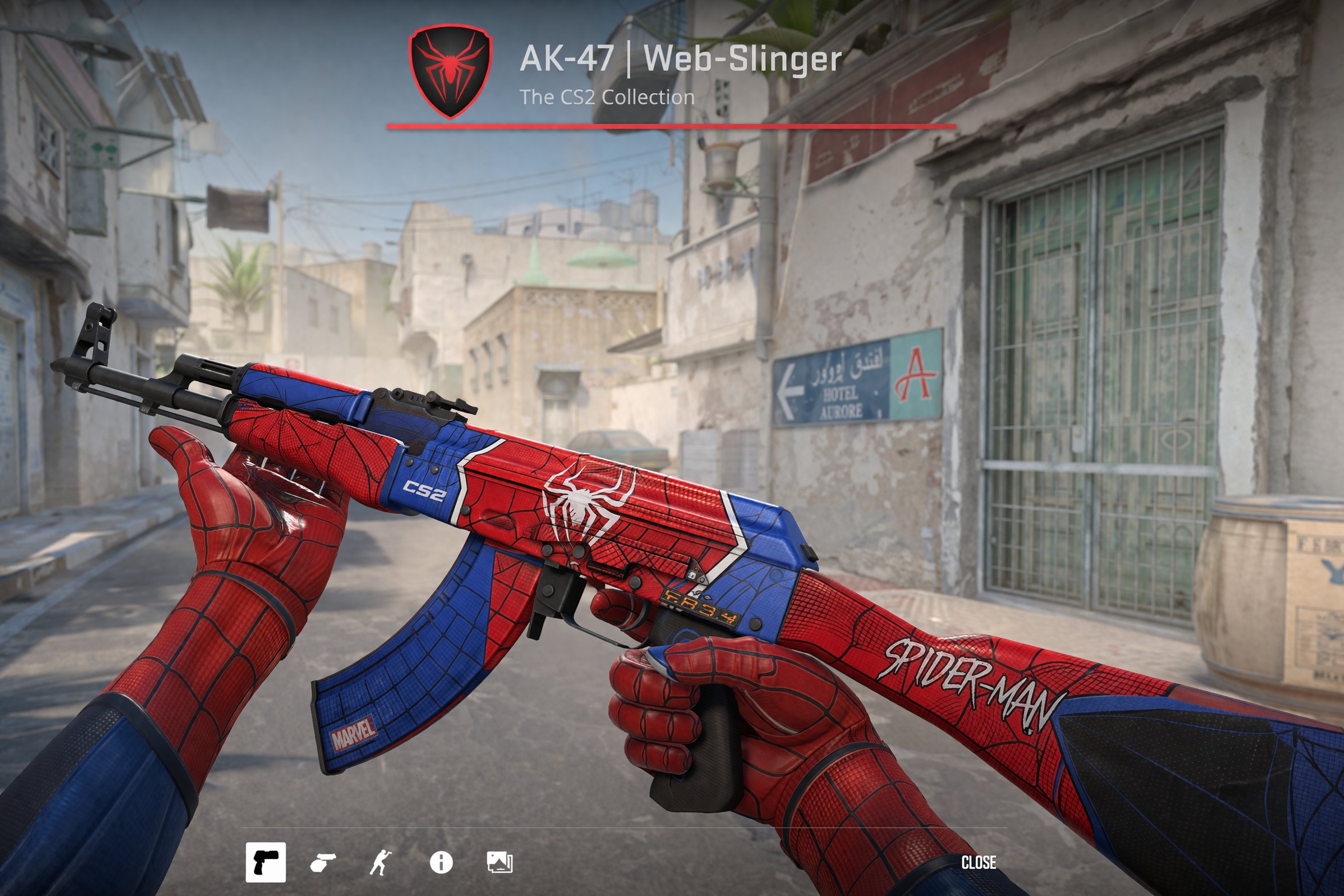
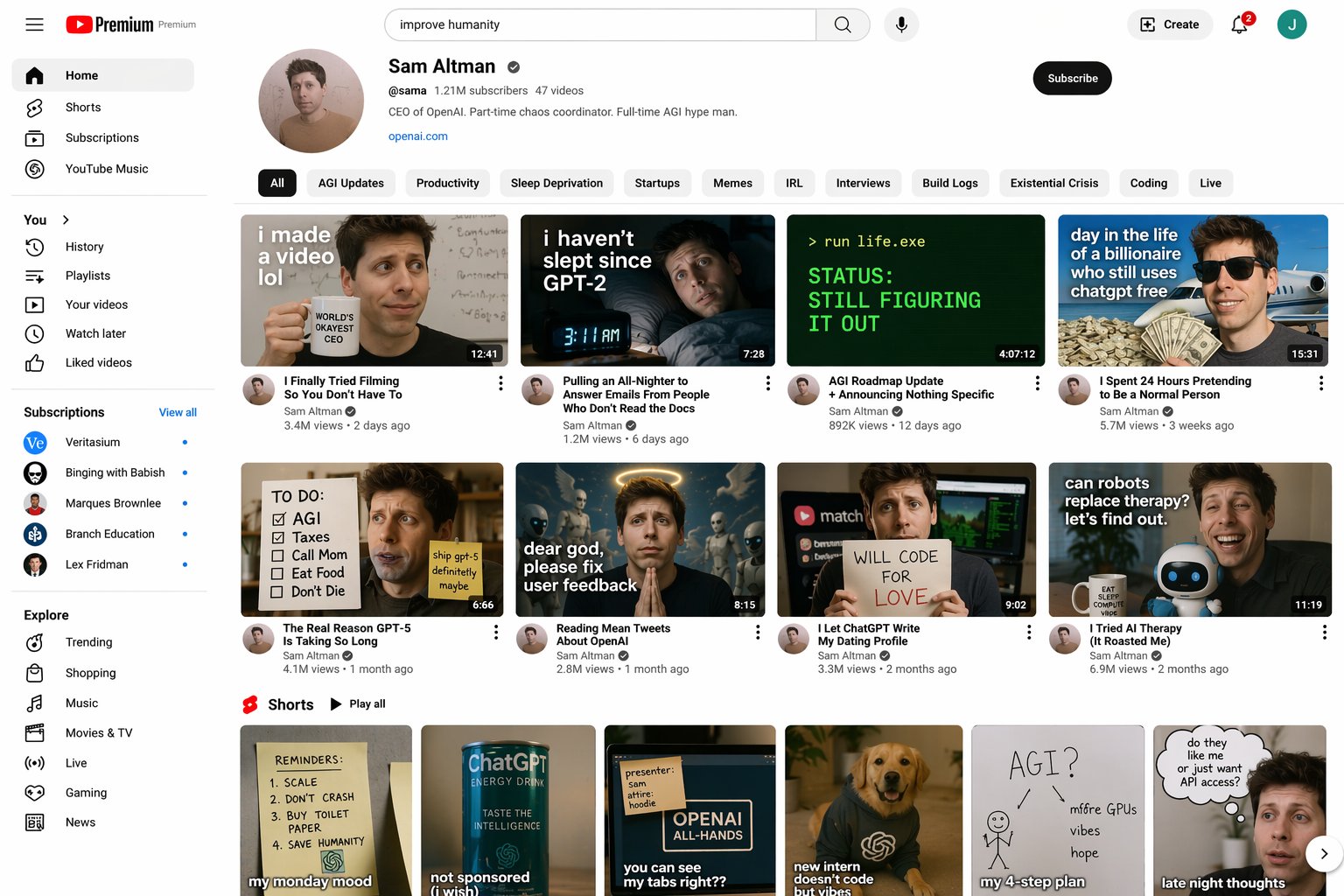
GPT Image 2.5 — AI Image Generator & Editor
GPT Image 2.5 (the model behind ChatGPT Images 2.5) is OpenAI’s newest image generation and editing model. It renders up to 50% faster than GPT Image 2, keeps faces, products and logos from your reference images intact, and changes only what you ask for when you edit. It comes in two versions: Flare for speed and Sunburst for precision.
What’s New in GPT Image 2.5
Up to 50% faster generation
GPT Image 2.5 Flare cuts generation latency by up to half compared with GPT Image 2, while producing higher-quality images. You spend less time waiting and more time trying new ideas.
Great for:
- Rapid prompt exploration and A/B variations
- Social media and creator content
- High-volume batches of assets
Early users report multi-step workflows dropping from well over a minute to under forty seconds.
Edits that stay where you point
Ask for a new background, a different jacket color, or a swapped headline, and GPT Image 2.5 changes just that element. Composition, lighting and everything else you didn’t mention stay put instead of being regenerated.
What stays stable:
- Layout and camera angle
- Unrelated objects and text
- Earlier design decisions across multiple edit rounds
Editing is where GPT Image 2.5 gains the most over GPT Image 2 on public leaderboards.
Stronger reference fidelity
- People, pets and products stay recognizable when you restyle them or place them in a new scene.
- Distinctive details such as logos, packaging, facial features and fabric patterns carry through more reliably.
- Handles multiple reference images in one prompt, so you can combine a subject, a style and a setting.
More natural images
- More natural lighting, skin and material textures, with fewer of the tell-tale “AI” artifacts.
- Better handling of complex layouts such as posters, packaging, infographics and UI mockups.
- Keeps GPT Image 2’s strong text rendering for headlines, labels and multilingual copy.
- 1K, 2K and 4K output at any supported aspect ratio, including Auto.
What changed from GPT Image 2
GPT Image 2 made text rendering and photorealism reliable. GPT Image 2.5 builds on that with a focus on the speed, editing precision and subject fidelity you need for real production work. Image quality improves too, though for simple one-shot prompts the difference is often modest. The gains show most when you iterate: multi-round edits, product shots and campaigns built from reference photos.
How It Works
Pick a model & mode
Choose Flare for fast drafts or Sunburst for polished, detail-critical work, then switch between Text to Image and Image to Image.
Describe & add references
Write your prompt, quote any exact text in the image, and upload reference photos for Image to Image. Then set the aspect ratio and resolution.
Refine one change at a time
Click Edit to send the result back to Image to Image and ask for one targeted change per round. GPT Image 2.5 keeps the rest of the image intact.
Flare vs Sunburst: Which Model Should You Use?
Both GPT Image 2.5 models share the same improvements in quality, editing and reference fidelity. They differ in how they balance speed against control. GPT Image 2 is still available if you want to compare results.
GPT Image 2.5 Flare
Strengths
Up to 50% lower latency than GPT Image 2 with higher image quality. Handles everyday local edits well and keeps iteration fast.
Use it for
Social posts, thumbnails, concept exploration, rapid prototyping and anything you plan to generate in volume.
GPT Image 2.5 Sunburst
Strengths
Highest-scoring GPT Image model for both editing and text-to-image. Keeps edits tightly controlled across many rounds and preserves fine detail.
Use it for
Campaign key visuals, e-commerce product shots, brand assets and any image where every detail has to be right. Generation takes a little longer.
GPT Image 2
Strengths
Excellent text rendering and photorealism. It set the baseline that 2.5 builds on.
Keep in mind
Slower than Flare, and edits are more likely to drift from the original. On this page, Auto aspect ratio is limited to 1K and 1:1 to 2K.
Prompting tips for GPT Image 2.5
Name the deliverable
Say what the image is for, such as “a product hero shot for a landing page”, then describe the visible elements specifically.
Give references a role
- “Use image 1 for the product”
- “Use image 2 for the lighting style”
- Put required text in quotes
Lock what shouldn’t change
When editing, state the change and what must stay, e.g. “change the sofa to green, keep the room and lighting the same”. Make one important change per round.
Very small text and dense fine print can still come out imperfect, so double-check them before publishing.