

Try MAGI-2 AI video generator

Turn an idea, a photo or your reference media into a 1080p video with MAGI-2. Create 4–30 second clips with optional sound, right in your browser.

Optional
Optional
0/5000
Auto-generate audio is on

What is MAGI-2?

MAGI-2 is an AI video model developed by Sand.ai. It creates video and sound together and accepts text, image, video and audio references. On VGE AI, you can start with a prompt, animate a first-frame image or combine reference media in one generation.

MAGI-2 vs Seedance 2.5: See the difference

The same prompt, two models. Watch MAGI-2 and Seedance 2.5 recreate the same scene, then compare facial expressions, hand movements, camera motion and scene details.

Try MAGI-2
Same-prompt example. MAGI-2 on top; Seedance 2.5 below. Results vary by prompt and settings.

Three ways to create with MAGI-2, plus sound

Start with what you have. Describe a scene, bring a still image to life or guide a new clip with your own references.

MAGI-2 text to video: start with an idea

Describe the subject, action, setting and camera movement. MAGI-2 turns your prompt into a video without requiring an upload. Try a product reveal, a short story scene or a vertical social clip, then refine one detail at a time.

MAGI-2 image to video: animate your first frame

Upload a JPG, PNG or WebP image as the first frame, then describe how the subject and camera should move. Add an optional last frame to guide the ending. The output follows your first image’s aspect ratio, making this a useful starting point for product photos, portraits and illustrations.

Reference to video: show the look, motion and sound

Combine image, video and audio references, then explain what each should contribute: a character’s appearance, a scene’s visual style, a camera move or a sound cue. MAGI-2 supports up to 20 reference items: 10 images, 5 videos and 5 audio clips.

Generate video with sound in one pass

MAGI-2 can generate dialogue, ambient sound, sound effects and music alongside the picture. Describe the sound you want in your prompt and keep audio enabled, or turn it off for a silent clip.

  • 1080p output with a duration of 4–30 seconds
  • Six aspect ratios for text and reference generation, including 16:9 and 9:16
  • First-frame guidance with an optional last frame in image-to-video mode
  • Review the credit estimate before you generate

How to use MAGI-2 on VGE AI

  1. 1. Choose your starting point

    Keep MAGI-2 selected. Use Omni Reference for a text prompt or reference media. Choose First & Last Frames to animate an image.

  2. 2. Describe the scene and set the output

    Write the action, camera movement and sound. Choose a duration, set the aspect ratio where available and check the credit estimate.

  3. 3. Generate, review and refine

    Sign in to generate. Find the result in your generation tasks, review the motion and audio, then download it or revise your prompt for another take.

MAGI-2 prompt examples to start with

Use a clear sequence: subject + action + setting + camera movement + sound. The images illustrate these suggested prompts; they are not MAGI-2 video outputs.

Glass product bottle with water droplets on dark slate under soft side lighting

Image to video

Product video from a photo

Use the uploaded product photo as the first frame. The camera slowly moves closer to the bottle on a dark stone surface. Soft side lighting reveals the glass texture as a few water droplets slide down. Keep the bottle shape and label as close to the reference as possible. Audio: gentle water drops and quiet room ambience.

Florist placing a vase of flowers on a counter in a sunlit flower shop

Text to video

A short scene with dialogue

A medium shot of a florist opening a small shop at sunrise. She places a vase on the counter, looks toward the doorway and says, “Come in, we’re open.” The camera gently pushes in. Warm natural light. Audio: her voice, the door bell and distant street sounds. No background music.

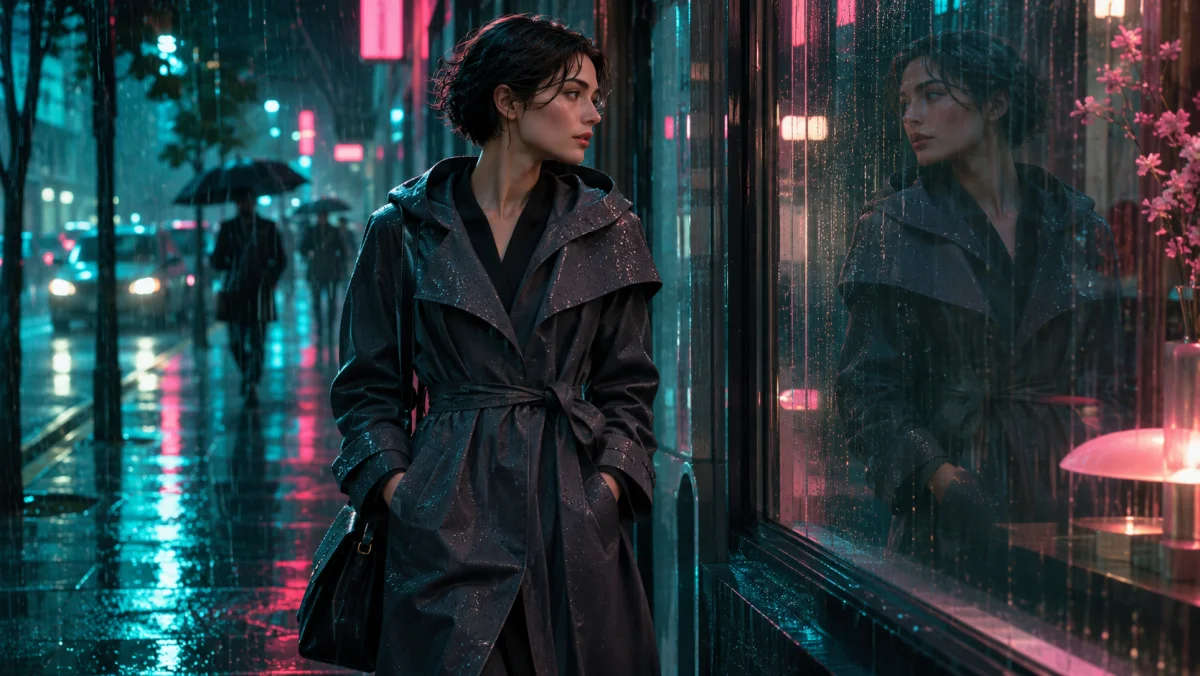
Woman in a dark raincoat looking at her reflection on a rainy neon street

Reference to video

A vertical character clip

Use the character image for appearance and the reference video for camera movement. The character walks through a rainy neon street, pauses beside a shop window and looks at the reflection. Keep the outfit consistent. Vertical framing. Audio: footsteps, light rain and distant traffic.

MAGI-2 FAQ

Your MAGI-2 questions, answered

Quick answers about using MAGI-2 online, writing prompts, pricing and the research Preview.

Where can I try MAGI-2 online?

You can use MAGI-2 in the generator at the top of this VGE AI page. Keep MAGI-2 selected, enter a prompt or add supported media, choose your settings and sign in to generate. You do not need to install a model or run a local GPU.

Is MAGI-2 free to use on VGE AI?

MAGI-2 generations use credits. Any account bonus or free generation offer has its own model restrictions; a free offer does not necessarily cover MAGI-2. Check your balance and the credit estimate with MAGI-2 selected before generating.

How much does a MAGI-2 video cost?

The generator shows the estimated credit cost for your selected duration before submission. Check the model credit table on the pricing page for current MAGI-2 rates. Prices from Sand.ai or other platforms may differ from VGE AI’s credit pricing.

View MAGI-2 credit pricing
Can MAGI-2 turn a photo into a video?

Yes. Select First & Last Frames and upload a JPG, PNG or WebP first-frame image. Describe the motion you want; a last-frame image is optional. The first image determines the output aspect ratio. You can also use images as references in Omni Reference mode.

Does MAGI-2 generate audio and lip-synced dialogue?

MAGI-2 supports joint audio-video generation, including dialogue with lip-sync, sound effects, ambience and music. Keep audio enabled and describe what should be heard. Review each result: pronunciation, timing and lip-sync can vary.

What video length, resolution and aspect ratios are supported?

On VGE AI, MAGI-2 supports 4–30 second clips at 1080p. Text and reference modes offer 21:9, 16:9, 4:3, 1:1, 3:4 and 9:16. Image-to-video follows the first-frame image’s aspect ratio.

How many images, videos and audio clips can I use as references?

In MAGI-2 Omni Reference mode, you can combine up to 10 images, 5 videos and 5 audio clips, for a maximum of 20 items. Tell the model what to use from each reference. File size and duration limits still apply when uploading.

How do I write a better MAGI-2 prompt?

Describe who or what is in the scene, what happens, where it happens and how the camera moves. Add dialogue or sound instructions if needed. For an image prompt, focus on what should move. Begin with one clear action and revise one detail at a time.

Is MAGI-2 the same as MAGI-2 Preview? Is it open source?

They are different releases. Sand.ai’s full MAGI-2 supports clips up to 30 seconds and multimodal references. The earlier MAGI-2 Preview has a public inference repository and model weights, and its documented clip length is 10 seconds. The full model’s launch announcement says open-source releases will follow; the Preview repository does not establish that the full MAGI-2 weights are available.

Explore the MAGI-2 Preview repository
Can I use MAGI-2 for product ads and social videos?

Product reveals, animated illustrations and short social scenes are useful starting points. Use media you have permission to upload and review faces, labels, logos, motion and audio before publishing. For commercial projects, check the applicable service terms and rights to your inputs.

Make your first MAGI-2 video

Start with a clear prompt or one image. Choose your settings and see the credit estimate before generating.

Try MAGI-2 now